
In short
- An AI work planner is a single planner for your calendar, tasks, hours and clients that your AI can operate for you: you say what needs doing, and the AI puts it in the right place.
- There are three approaches: AI built into a planning app, chatting with an AI that isn't connected to a planner, or connecting your own AI to your planner via MCP.
- What matters most: a two-way calendar, time tracking with rates, a client overview, privacy and export, and whether the planner works just as well without AI.
- Let the AI carry things out, not make the decisions. Set a fixed moment to check what has been recorded.
What exactly is an AI work planner?
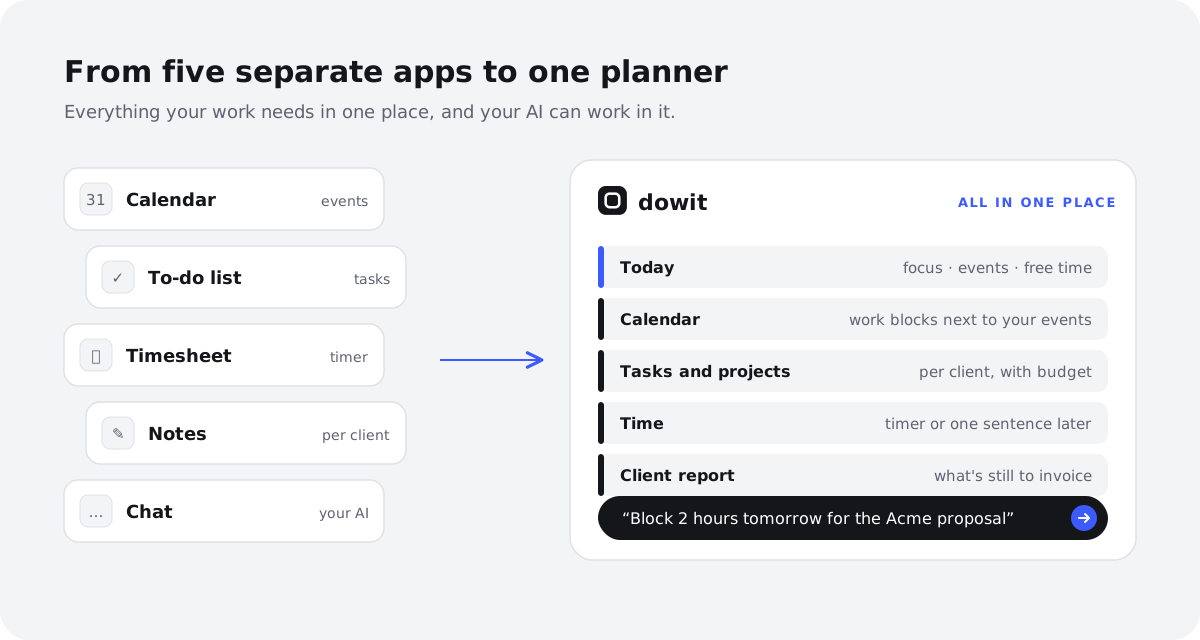
An AI work planner brings your calendar, to-do list, time tracking and client details together in one place, and lets you operate it by simply saying what you want. "Block two hours tomorrow for the Acme proposal" becomes a slot in your calendar. "I spent an hour on Northwind" becomes a time entry against the right client.
The difference from an ordinary planner isn't the feature list, it's how you reach those features. Instead of clicking through five screens, you tell your AI what has happened or what needs to happen. The planner remains the place where everything actually lives; the AI is simply the quickest way to work in it.
For freelancers and small agencies, that's more than a convenience. Your work is spread across calendar, tasks, hours and clients, and it's at the seams between them that things slip: hours you forget to log, tasks that never find a place in your week, a month you don't bill in full.
What are the approaches, and what are the trade-offs?
Broadly, there are three ways to bring AI into your planning. None of them is best in every situation; it depends on which AI you already use and how much you want to hand over.
| Approach | How it works | Pros | Cons |
|---|---|---|---|
| AI built into a planning app | The app has its own assistant or smart features that schedule or suggest things | Works straight away, nothing to connect; the AI knows the app well | You're tied to that one AI; often an extra cost; yet another assistant alongside the one you already use |
| Chatting with an AI without a connected planner | You ask an AI to plan your day or week and copy the result across yourself | Free or already in your subscription; good for thinking things through | The AI can't see your real calendar or tasks; lots of retyping; nothing is saved or tracked |
| Your own AI connected to your planner via MCP | Your AI assistant gets access to your planner and can read and write | You use the AI you already know; it works with your real data; the planner still works on its own | Needs an AI subscription that allows custom connections; a one-off setup |
AI built into a planning app
This is the most familiar form: a planner with its own assistant, or features that automatically slot your tasks into your calendar. It's handy if you don't use AI yet and want everything in one package. The catch: if you already spend your day in Claude or ChatGPT, you now have two assistants, each knowing half the story.
Chatting with an AI without a connected planner
Plenty of freelancers start here. You paste your to-do list into a chat and ask for a realistic weekly plan. That helps you think, but the AI has no idea what's actually in your calendar, and you have to transfer the result by hand. Logging hours or preparing an invoice simply isn't possible this way.
Your own AI connected via MCP
MCP (Model Context Protocol) is an open standard that lets an AI assistant talk securely to another app. Connect your planner to your AI over MCP and it can look up your day, schedule meetings and log hours in your real data. For the setup itself, see the guide on how to connect Claude to your calendar via MCP.
What should you look for when choosing an AI work planner?
A clever AI won't rescue a weak planner. So judge the planner first, and only then what the AI can do with it. This checklist helps.
| What to look for | Why it matters | Question to ask |
|---|---|---|
| Two-way calendar | Your meetings belong next to your tasks, and whatever you plan should land in your calendar | Can I see my existing meetings, and does a planned work block show up in my calendar too? |
| Time tracking and rates | No hours and rates, no accurate invoice | Can I run a timer and log time afterwards, with an hourly rate per client or project? |
| Client overview | At month end you want to know, per client, what you did and what it's worth | Do I get a monthly summary per client that I can copy or export? |
| Privacy and export | Your planner holds client data, and you need to be able to leave | Is my data used to train AI? Can I export everything and delete my account? |
| Works without AI too | Sometimes you just want to click, or your AI is unavailable | Can I do everything in the app itself, on laptop and phone? |
| Team support | As you grow, you'll want to share clients and projects | Can colleagues join with their own tasks and hours, and with roles? |
| Price | You use a planner every day, so the cost should feel proportionate | What does it cost for just me, and what happens when someone joins? |
Two of these are often underrated. First, does the planner work without AI? An AI layer is lovely, but you never want to depend on a single chat window just to see your day. Second, export. If your hours and client data are hard to get out, you're stuck, even when you later switch AI assistant.
What does a working day look like with an AI work planner?
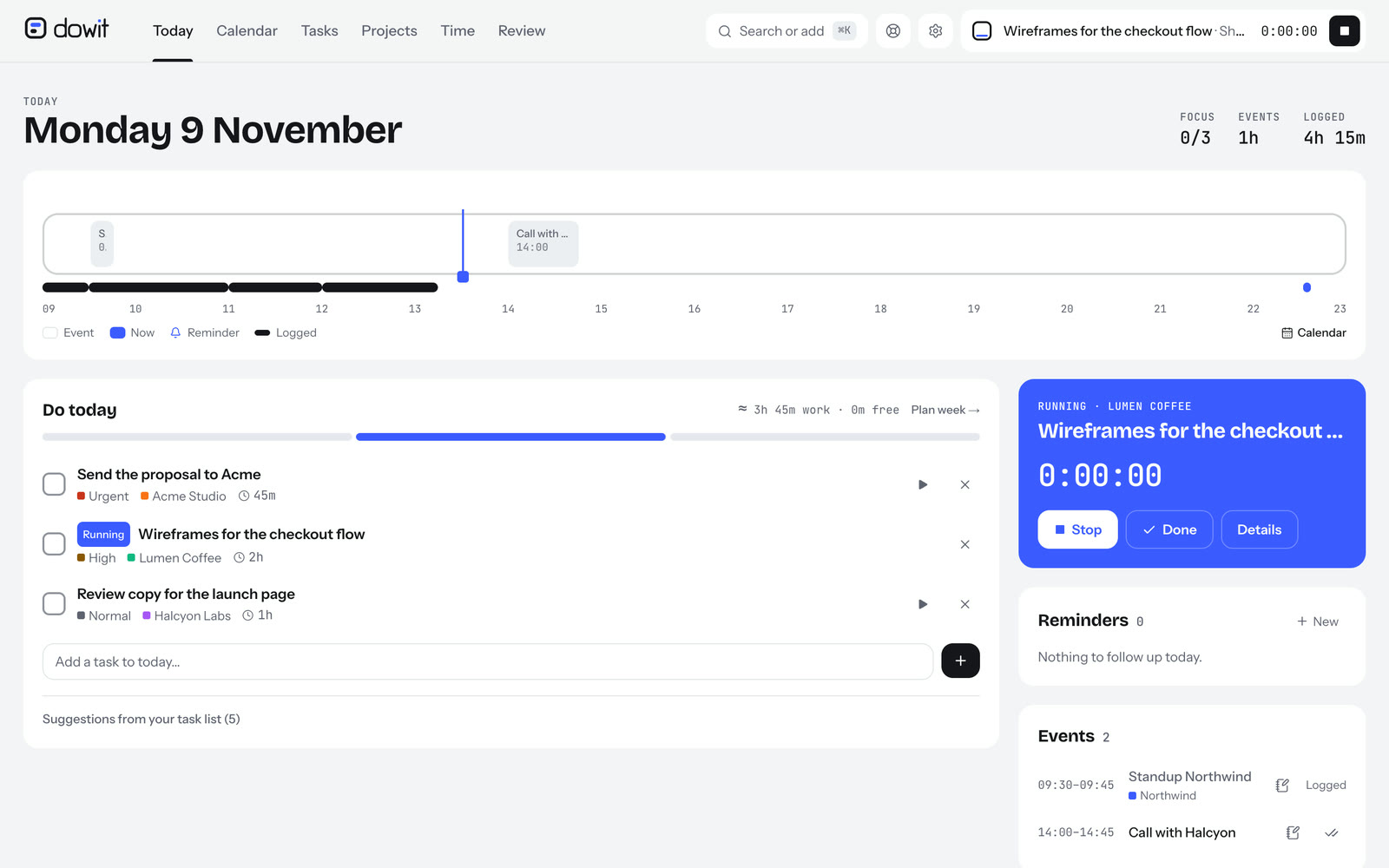
Most of the gain doesn't come from one big planning session. It comes from dozens of small moments where you no longer need to jump between apps. Here's a sample day for a freelance designer with four clients:
| When | What you say to your AI | What happens |
|---|---|---|
| 08:45 | "What's on today?" | You get your meetings, your focus tasks and how much free time you have left |
| 09:00 | "Put the Acme proposal and the Lumen Coffee logo fixes on today's focus list" | Two tasks sit at the top of your day |
| 09:05 | "Start a timer on the Acme proposal" | The timer runs against the right client |
| 11:30 | "Stop the timer. Find two free hours tomorrow for the follow-up." | Time recorded; a work block in your calendar |
| 13:00 | "Sam from Northwind wants a call on Thursday at 3pm, add it to my calendar" | Meeting scheduled, also visible in your calendar app |
| 16:30 | "1h Halcyon Labs, 30m Northwind" | Two time blocks placed one after the other in your working day |
| 17:30 | "Move whatever isn't done to tomorrow" | Tomorrow's list is ready |
Planning, not just recording
Often the most valuable moment is scheduling deep work. Ask your AI to find free time within your working hours and you get a block that genuinely fits your week, rather than a task with a deadline you end up chasing on Friday evening. If you work this way, time blocking will pay off nicely.
At the end of the week
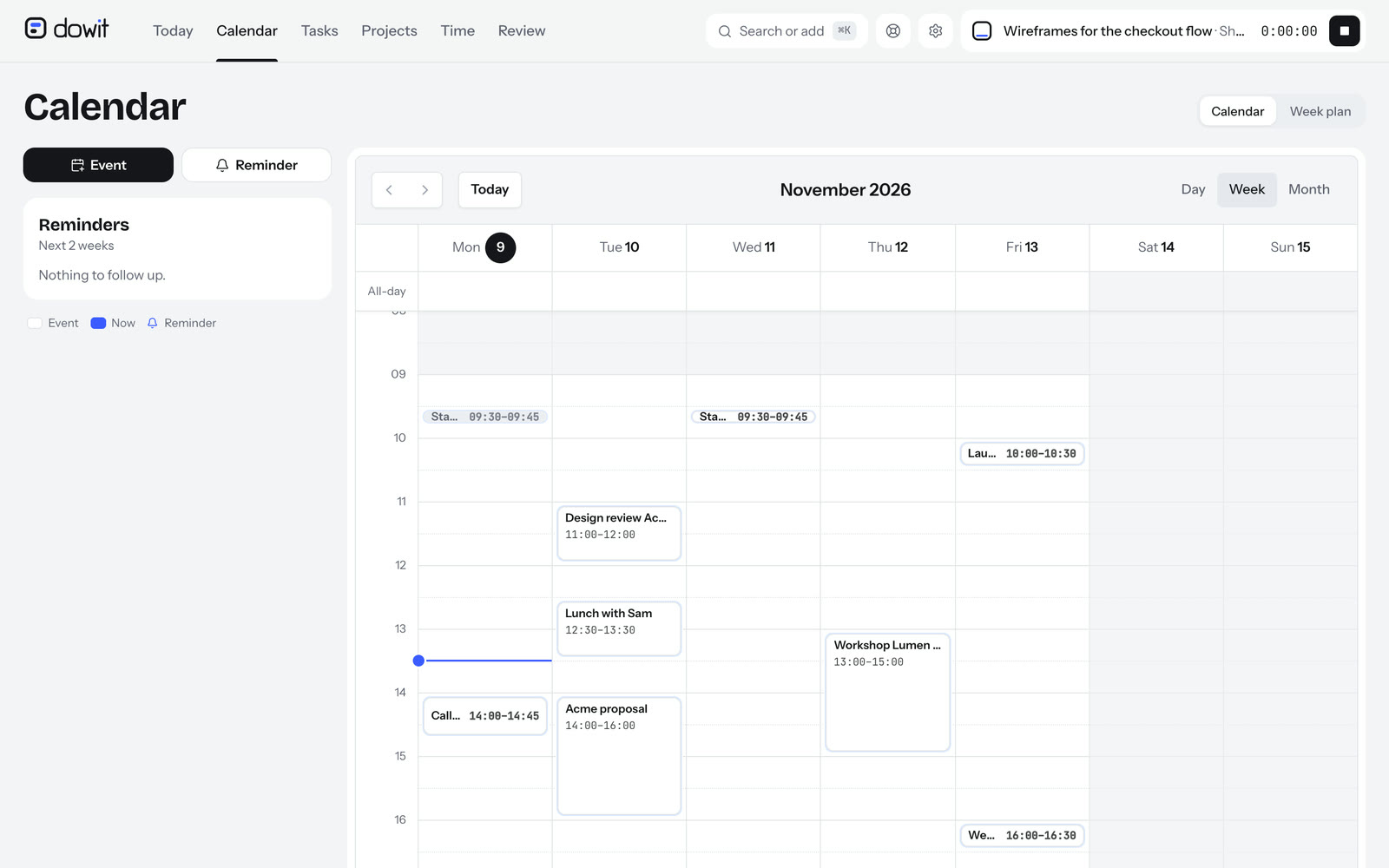
On Friday, ask: "How many hours did I work per client this week, and what's still open?" That's the start of a short weekly review. There's more in the guide to the weekly review for freelancers.
Which pitfalls should you avoid?
An AI work planner makes planning lighter, but not automatically better. Three pitfalls come up again and again.
Letting the AI decide everything
An AI can sort your to-do list, but it doesn't know which client matters most to you this quarter, or that you'd rather ease in after a heavy week. Use the AI to carry out what you've decided: "schedule this", "log that", "push this back". Setting priorities is still your job.
No moment to review
When you report hours in quick sentences, mistakes creep in: the wrong client, an entry logged twice. So set a fixed moment, say Friday afternoon or the last working day of the month, to check your hours per client before you invoice. The guide on how to bill by the hour shows how.
Losing sight of privacy
Your planner holds client names, projects and sometimes sensitive notes. Check exactly what the AI can see, whether you can disconnect at any time, and whether your data is used to train models. Never share more in a chat than you need to.
How does Dowit approach this?
Dowit is a work planner for freelancers and small agencies: calendar, tasks, projects, clients, time tracking and client summaries for invoicing, all in one place. It's a web app that you can also install on your phone.
Dowit has no built-in AI of its own. You connect the AI you already use, Claude or ChatGPT, via MCP. From then on, your AI can look up your day, schedule meetings, find free time, start timers, log hours in a single sentence and produce a monthly summary per client. Dowit doesn't create invoices itself: you take the summary as text, PDF or CSV into your own invoicing software. More on the AI page.
The calendar syncs both ways with Google Calendar, and everything works without AI too, with quick add via ⌘K. Your AI only sees your own workspace, Dowit doesn't train any AI on your data, and you can export everything or delete your account at any time (see security). Dowit is free for yourself, with no time limit; working as a team is part of the Business plan (see pricing).
Frequently asked questions
What's the difference between an AI work planner and an ordinary planner?
The features are often the same: calendar, tasks, hours and clients. The difference is that you can operate an AI work planner by saying what you want, rather than filling everything in yourself. The planner stays the place where your data lives.
Do I need a paid AI subscription?
With a planner that has AI built in, usually not separately, although the cost is then often in the app itself. If you want to connect your own AI via MCP, you need a subscription that allows custom connectors. Check with your AI provider which plans support this.
Can an AI plan my whole week automatically?
Technically an AI can spread your tasks across the week, but it works better when you choose the priorities and the AI does the scheduling. Try something like: "Find three two-hour blocks this week for the Acme project." That way you stay in charge.
Is it safe to give my AI access to my calendar and clients?
That depends on the planner. Choose one where your AI sees only your own data, where you can disconnect at any time, and where your data isn't used to train AI. Don't share more in a chat than you need to.
Does an AI work planner work for a small team?
Yes, provided the planner supports shared clients and projects, with separate tasks and hours for each person. Look for roles, so not everyone can change everything. Each team member can then connect their own AI.
What if I want to switch AI assistant later?
With an MCP connection that's straightforward: your data lives in the planner, not in the AI. You remove the old connection and connect the new assistant using the same address.