In short
- MCP (Model Context Protocol) is an open standard that lets an AI assistant such as Claude or ChatGPT use tools and data you choose to allow.
- You connect a service by adding a custom connector in your assistant with that service's address (for Dowit:
https://dowit.io/api/mcp), then signing in and granting access.- After that you can simply ask "what's on my calendar today?" or "block two hours on Thursday for the Acme proposal", and the AI does it.
- You need a plan that allows custom connectors. You can disconnect at any time.
What is MCP, in plain English?
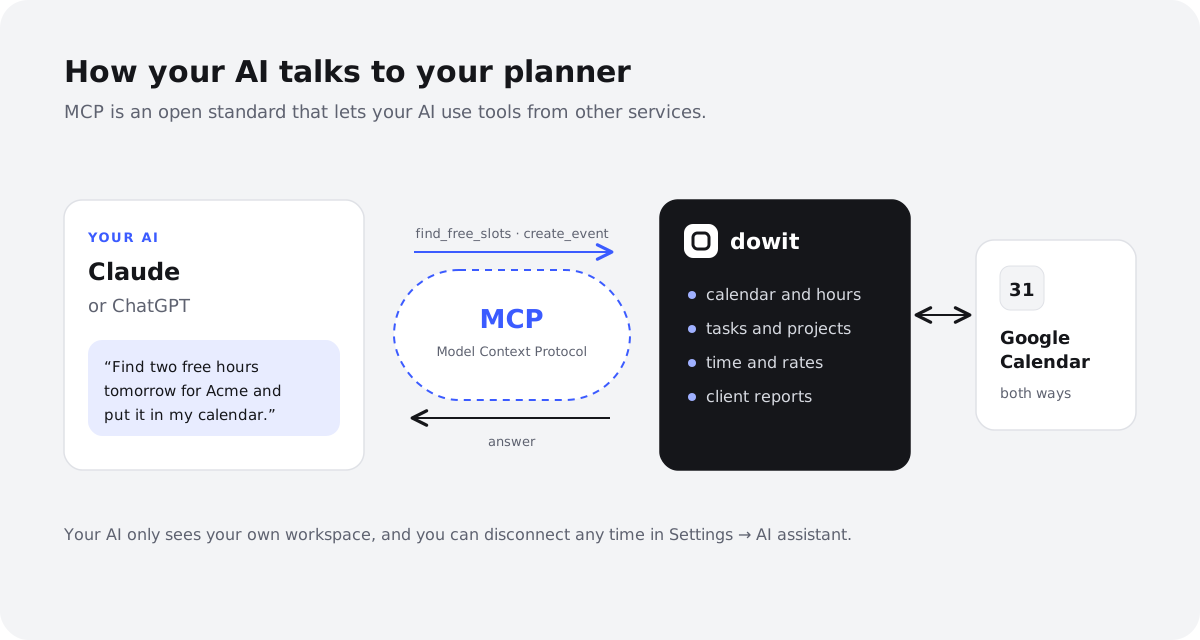
MCP stands for Model Context Protocol. It's an open standard that describes how an AI assistant talks to other software. Without a connection like this, Claude can only work with what you type or paste into the chat. With one, it can look something up or make a change in another app, when you ask it to.
Think of it as a plug with a standard shape. A service that supports MCP offers a list of "tools": small, clearly described actions such as "get today's events" or "create a task". Your assistant reads that list and, when your request calls for it, picks the right tool and fills in the details. Because the plug is the same shape everywhere, one service can work with Claude, ChatGPT and any other assistant that supports the standard.
Worth knowing: MCP doesn't make your AI any cleverer, and it doesn't give it free rein over your computer. It only gives your assistant the actions the connected service offers, within the account you sign in with.
What can a connector do, and what can't it?
A connector is the link you set up inside your AI assistant. It helps to know the boundaries up front, so your expectations are realistic.
| A connector... | Does | Doesn't |
|---|---|---|
| When does it act? | When you ask for something in a chat | On its own, in the background or overnight |
| What can it see? | Only the service and account you connected | Your other apps, folders or email |
| What can it do? | The actions the service offers (e.g. create a task, move an event) | Anything the service itself can't do |
| For how long? | Until you disconnect it | Forever, with no way for you to stop it |
Two caveats. First, an AI can get things wrong: a misread date, or a task filed under the wrong client. Read what your assistant tells you, especially when it deletes or reschedules something. Second, some apps ask you to confirm before a tool runs; exactly how that works depends on your AI app and your settings.
How do you connect Claude to your calendar and task list?
The steps below use Dowit as the example, because it brings calendar, tasks and time tracking together and keeps Google Calendar in sync both ways. Any other service with an MCP address works the same way; only the address changes. Claude's menus may be labelled slightly differently depending on your language and version, and you'll need a plan that allows custom connectors.
Step 1: Make sure you have an account with the service
Your AI will sign in on your behalf, so you need an account first. With Dowit you create one for free with Google or an emailed sign-in link, no password required. If you'd like your existing events next to your tasks, connect Google Calendar in Dowit as well. That part is optional.
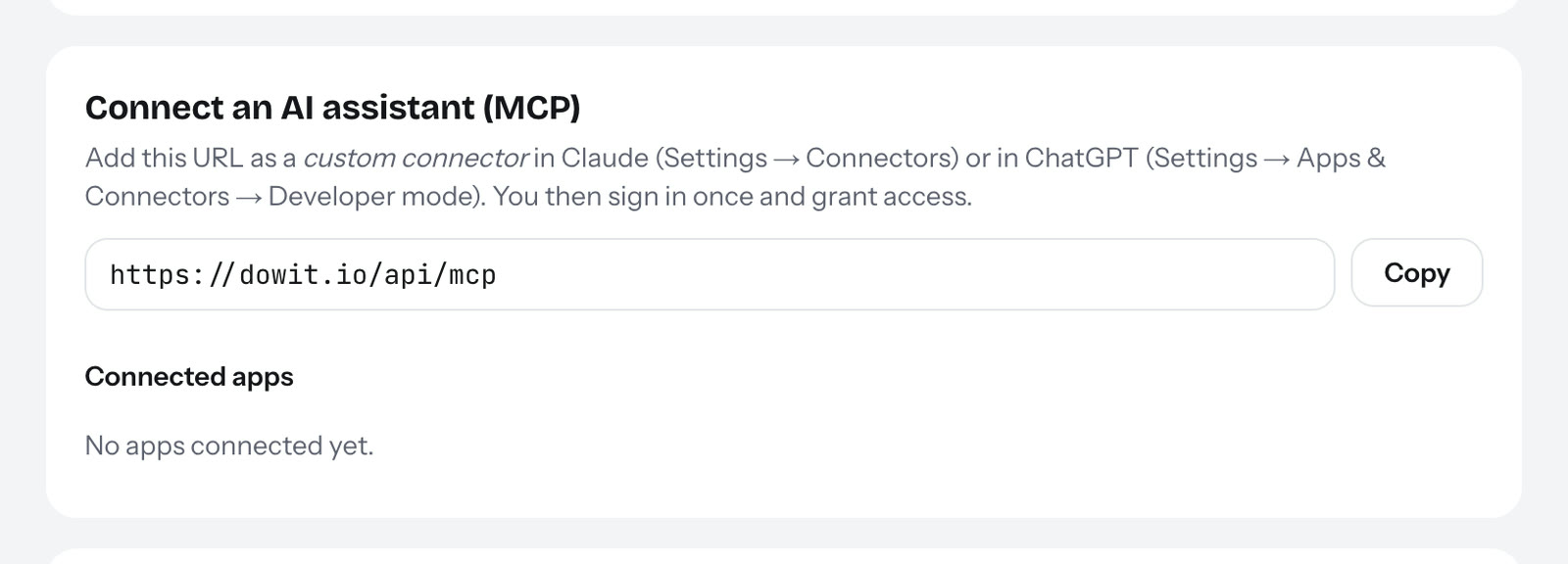
Step 2: Copy the connector address
In Dowit you'll find the address under Settings → AI assistant. It's the same for everyone: https://dowit.io/api/mcp. There's no secret key in it; who you are is only established when you sign in at step 4.
Step 3: Add a custom connector in Claude
In Claude, open Settings → Connectors and choose "Add custom connector". Give it a name you'll recognise, such as "Dowit", and paste the address from step 2.
Step 4: Connect, sign in and grant access
Click Connect. A window from the service itself opens, where you sign in and confirm that Claude may have access. You're then sent back to Claude, and the connector appears in your list. Start a new chat and, if your app shows it, check that the connector is switched on for that conversation.
How do you connect ChatGPT the same way?
ChatGPT supports custom MCP connectors too, but you have to switch them on a little more deliberately. The same caveats apply: your plan needs to allow custom connectors, and menu names can change.
Step 5: Turn on Developer mode
In ChatGPT, open Settings → Apps & Connectors and turn on Developer mode. Only then can you add a connector with an address of your own.
Step 6: Create a connector with the same address
Choose to create a connector, give it a name and enter https://dowit.io/api/mcp as the address. It's the same address you used in Claude; you can connect both assistants at once.
Step 7: Sign in and grant access
ChatGPT sends you to the service's sign-in page. Sign in, grant access and return. In a new chat you can then enable the connector and ask your first question.
What should you try first?
Start with something read-only, so you can see the connection works without changing anything. Then move on to requests that create or move things. The examples below use Dowit; phrase them however you like, as the AI doesn't need fixed commands.
| You ask | What happens |
|---|---|
| "What's on my plate today?" | Your AI fetches today's events, focus tasks and open tasks, and sums them up. |
| "Find two free hours this week for the Acme proposal and book them in." | It looks for free time within your working hours and schedules a block. If Google Calendar is connected, the block appears there too. |
| "Move my call with Sam to Friday at 10am." | The event moves, in Dowit and in Google Calendar. |
| "Add a task: follow up Northwind quote, due next Wednesday, high priority." | A new task with a deadline and priority, linked to the client Northwind. |
| "What's still open for Lumen Coffee?" | A list of open tasks for that client. |
| "Log 1h Acme and 30m Northwind for this morning." | Two time entries, placed one after the other in your working day. |
| "Move whatever I didn't finish today to tomorrow." | Unfinished focus tasks are carried over to tomorrow. |
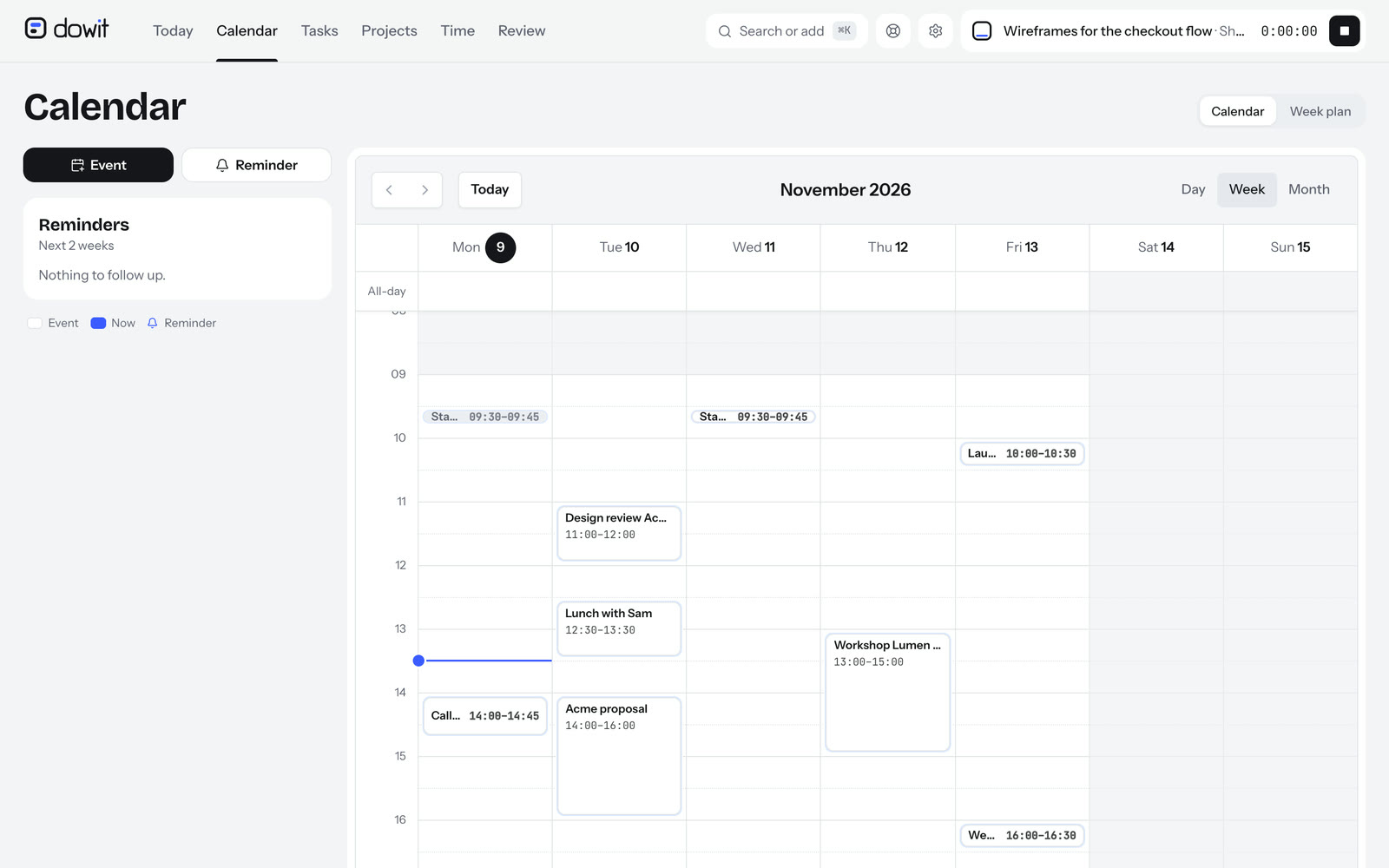
Note how the calendar works in both directions: events from your primary Google Calendar appear alongside your tasks, and anything you plan in Dowit through your AI lands in Google Calendar. Dowit doesn't keep a copy of your Google events, only the link to events it created itself. For more of what your AI can do, see the AI page or the guide on tracking time with Claude or ChatGPT.
A tip for better results: be specific about time and client. "Next week" is vaguer to an AI than "Tuesday at 2pm". And if you're unsure, ask for a proposal first: "suggest a plan for tomorrow, but don't book anything yet".
What about privacy and permissions?
An MCP connection always involves two parties: the service you connect and the company behind your AI assistant. Each has its own rules, and it's worth knowing both.
Signing in with OAuth
You never hand a password to your AI. The connection uses OAuth: you sign in on the service's own site and grant access there. Your AI app receives an access token that only works for that connection and can be revoked. It's the same mechanism behind "Sign in with Google" on many sites.
Per workspace
With Dowit, your AI only sees the workspace you signed in to, never another user's or team's. Each workspace is isolated in the database itself. You can disconnect at any time in Dowit under Settings → AI assistant, or remove the connector in Claude or ChatGPT directly. There's more detail on the security page.
What happens to your data
Dowit doesn't train AI on your data. But whatever your AI fetches does end up in your chat, and your chats are covered by your AI provider's own policies. So check the privacy settings in Claude or ChatGPT to see what they do with conversations and what you can switch on or off. If you'd rather certain client details didn't appear in a chat, ask more narrowly: "how many open tasks do I have?" rather than "show me all my tasks with notes".
What if the connection doesn't work?
Most problems have a simple cause. Work through these fixes in order.
The option to add a connector doesn't appear
First check that your plan allows custom connectors; without it, the button is missing or greyed out. In ChatGPT, Developer mode must be on. If you're on an organisation or team account, an admin may have disabled custom connectors. Try the web version too, as not every feature reaches every app at the same time.
You're stuck in a sign-in loop
You sign in, get sent back, and are asked to sign in again. Often the browser is blocking a pop-up or third-party cookies. Allow pop-ups for your AI app, try a browser window without extensions, and sign in to the service directly in the same browser first. Then remove the connector and add it again.
Your AI says it can't find the tool
Check that the connector is enabled in this particular chat; some apps require you to switch it on per conversation. Start a fresh chat after adding the connector. If that doesn't help, name the service: "use Dowit to fetch today's tasks".
You're seeing the wrong workspace
Your AI uses whichever account you signed in with while connecting. If you have several, say a personal and a work address, you may have picked the wrong one. Disconnect under Settings → AI assistant, sign out in your browser, and connect again with the right account.
Frequently asked questions
Is MCP only for Claude?
No. MCP is an open standard originally introduced by Anthropic, the company behind Claude, but other assistants support it as well, including ChatGPT. That means a service with an MCP address can be used with more than one assistant.
Do I need to know how to code?
No. You paste an address, sign in and grant access. Developer mode in ChatGPT sounds technical, but it's simply a switch that lets you add custom connectors.
Can I connect Claude to Google Calendar without another app?
Some AI apps offer their own link to Google services. If you want tasks, projects and time tracking alongside your calendar, you need a service that provides them. With Dowit you connect Google Calendar once inside Dowit, and your AI plans through Dowit in both directions.
Will my AI do things without me asking?
No. A connector only acts when you ask for something in a chat. Nothing runs in the background on your AI's behalf.
What does it cost?
Your AI assistant needs a plan that allows custom connectors. Dowit itself is free for individual use, with no time limit; working together as a team requires the Business plan. Details are on the pricing page.
How do I disconnect?
In Dowit under Settings → AI assistant, or by removing the connector in Claude's or ChatGPT's settings. After that, your AI no longer has access to your workspace.